

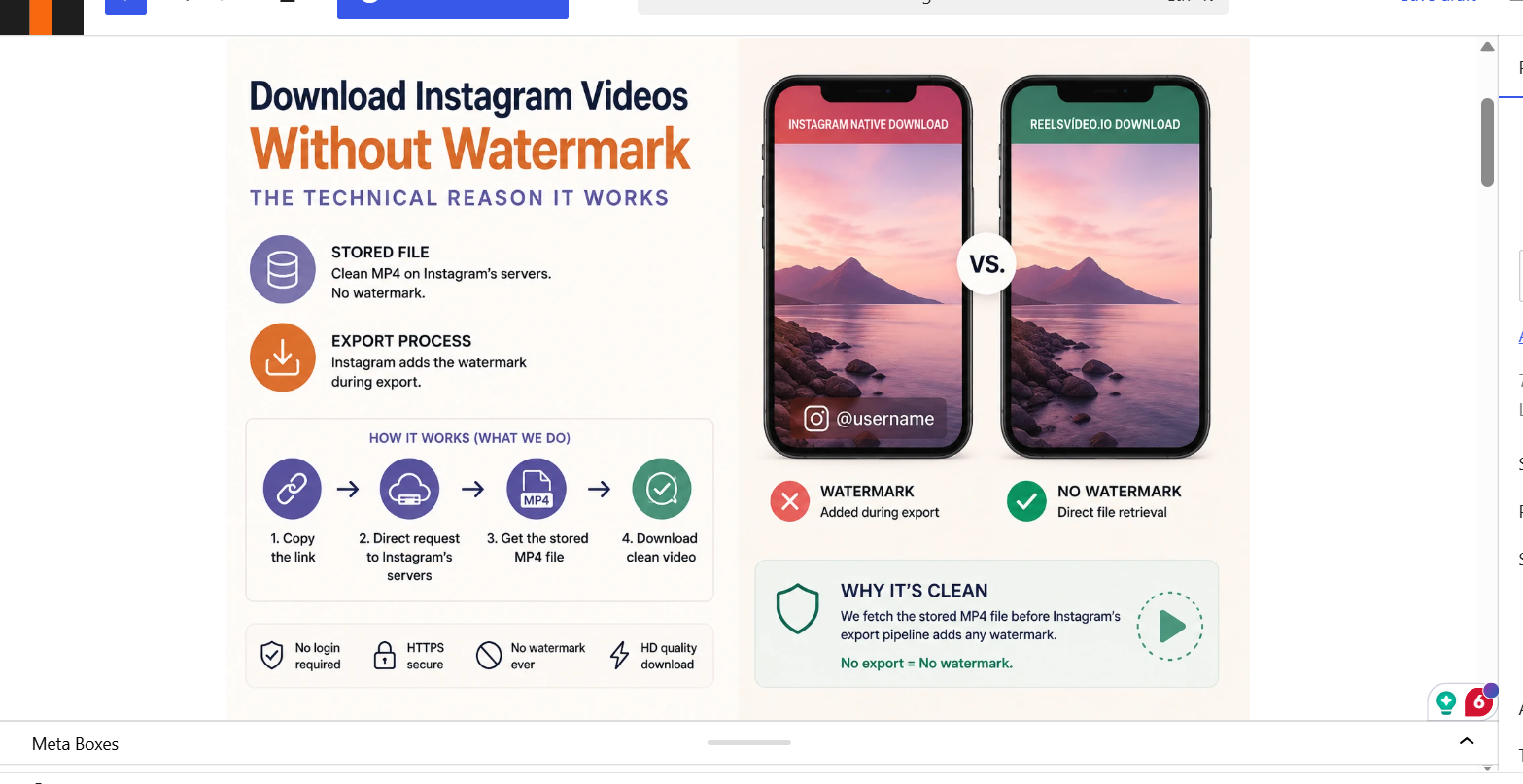
Instagram adds a watermark to videos downloaded through its own native feature — your username stamped onto the clip. But videos downloaded through an external instagram video grabber come out clean, with no watermark at all. This isn’t a loophole or a trick — it’s a direct consequence of how Instagram stores files versus how it exports them. Understanding the difference explains why the result is clean every time.
Where Watermarks Come From — and Where They Don’t
The watermark question comes down to when in the process branding gets applied:
| Method | When does a watermark appear — and why |
| Instagram’s native Reels download | Watermark added at the moment of export by Instagram’s own rendering pipeline |
| Screen recording | No watermark from Instagram, but UI elements are captured as part of the image |
| Third-party apps that re-render | Some apps composite their own logo during a re-encode step on their servers |
| Direct file retrieval (what reelsvideo.io does) | No watermark — the stored file is fetched before any export rendering occurs |
The Technical Explanation: Storage vs Export
When a creator uploads a video to Instagram, the platform stores it as an encoded MP4 file on its servers. This stored file contains only the video content — no username overlay, no branding. The file is exactly what was uploaded, after Instagram’s compression.
When Instagram generates a shareable or downloadable version through its native feature, it runs an export pipeline that composites the username text onto the video frames. This is a separate process from storage — it happens at export time, not at upload time.
An external downloader bypasses the export pipeline entirely. It makes a direct request to Instagram’s servers for the stored file — the same request your browser makes to play the video. No export pipeline, no compositing, no watermark.
How to Download Without Watermark — Step by Step
Open reelsvideo.io in any browser. Free, no sign-up.
- Open Instagram and find the video you want to download.
- Tap the three dots (••• on iPhone, ⋮ on Android) on the post.
- Select Copy link.
- Go to reelsvideo.io in your browser.
- Paste the link and tap Download.
- The stored MP4 file delivers to your device — clean, no watermark, in HD.
On Android
Chrome downloads the file to your Downloads folder automatically. The video appears in Gallery without extra steps. The file is identical to what Instagram’s servers store — no post-processing, no overlay.
On iPhone
Safari may play the video instead of saving. Fix: tap and hold the video in the browser, choose Download Linked File. The file appears in Files → Downloads. Move to Photos via Share → Save Video.
On PC or Mac
Copy the link, paste into reelsvideo.io, click Download. If the video opens in the browser, right-click → Save video as. The downloaded file is the raw stored MP4 — no watermark, original quality.
Why Instagram’s Own Download Adds a Watermark
Instagram’s native download is designed for a specific purpose: helping creators share their own Reels to other platforms with attribution. The watermark serves as automatic credit — when the clip lands on TikTok or Twitter, the creator’s Instagram username is visible.
This design intent is why the watermark exists and why it’s applied at export time rather than stored in the file. For creators sharing their own work, it makes sense. For someone who just wants a clean copy of a video for personal use, an external downloader is the appropriate tool.
Frequently Asked Questions
Does this work for downloading my own Instagram videos without watermark?
Yes. Instagram’s native download stamps your own username on your Reels. Using reelsvideo.io with your own post link retrieves the stored file before that export process — resulting in a clean copy with no watermark.
Will the creator know I downloaded their video?
No. Instagram doesn’t notify creators about downloads made through external tools.
Is there a download limit?
No limits. Download as many videos as you need, completely free.
The Stored File Is Always Clean
Instagram never stores watermarked versions of videos — watermarks are added at export time by the platform’s own pipeline. A downloader that goes directly to the stored file always delivers a clean result. Copy the link, go to reelsvideo.io, paste and download — the result is a watermark-free MP4, which is simply how Instagram save instagram videos on its servers.