


We use PINs or passwords on all devices to protect them from unauthorized access. However, if you happen to forget the PIN or pattern on your Android phone, Android Multi Tools can help. This tool allows you to remove or reset the pattern, password, PIN, and even the face lock. You can download the latest version, Android Multi Tool Download v1.02b, for Windows.
Since we frequently change our phone’s patterns and PINs for added security, it’s not uncommon to forget one of our passwords, especially with so many accounts and devices to manage. If you’ve forgotten your phone’s password, there’s no need to panic. Android Multi Tools offers a simple solution to reset or remove the password, PIN, or face lock. Download Android Multi Tools v1.02b for your Windows PC (compatible with Windows 11/10/8/7).
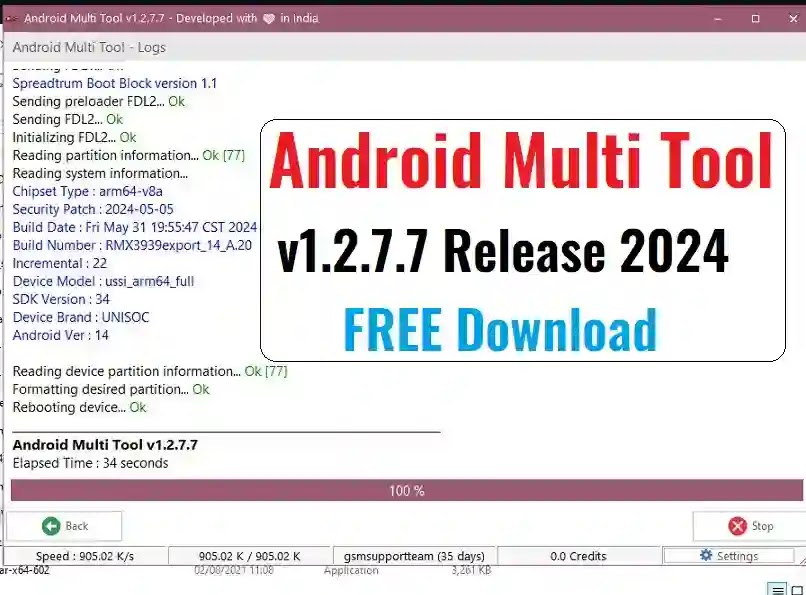
Features of Android Multi Tool Download v1.02b
- Device Status Check: Easily check the status of your Android device.
- Reboot Functionality: Quickly reboot your device with a single click.
- Fastboot Mode Check: Confirm whether your device is in Fastboot mode.
- Exit Fastboot Mode: Exit Fastboot mode with ease.
- Data/Cache Wipe in Fastboot Mode: Clear data and cache while in Fastboot mode.
- Wipe Data: Safely wipe data from your device.
- Launch Command Prompt: Open Command Prompt directly from your device.
- Hardware Information: Access detailed hardware information of your device.
- Software Information: Check the software details of your device.
- Gmail Account Reset: Reset your forgotten Gmail account password.
- Face/PIN Lock Reset: Reset your forgotten face or PIN lock.
- Face/Gesture/Pattern Lock Reset: Unlock your device by resetting face, gesture, or pattern lock.
- ADB & Fastboot Drivers: Directly download ADB and Fastboot drivers from within the tool.
How to Use Android Multi Tools
- Download the Tool
Start by downloading the Android Multi Tools from the provided link. - Extract the Tool
After downloading, open the file and extract it to your preferred location on your PC. - Connect Your Phone
Connect your Android phone to the PC, ensuring that USB Debugging is enabled. Note that root access is required for some functions. - Open the Tool
Navigate to the folder where you extracted the Android Multi Tools v1.02b. When prompted, click Yes to grant access and open the tool. - Using the Command Line Interface
The tool will launch with a Command Line Interface (CLI), which is straightforward to use. - Select an Option
You’ll be prompted to enter a number to select an action. Here’s a breakdown of available options:- Press 1 for device status. This will show basic information like the Device ID, IMEI, and more.
- Press 2 to reset the Face/PIN lock. Follow the on-screen instructions to deactivate or reset the PIN.
- Press 3 to reset the Face/Gesture/Pattern lock. This option will remove any pattern lock, allowing access to the phone.
- Press 4 if you’ve forgotten your Gmail account or password. This option will help you remove the account and regain access to the device.
- Press 5 to format the data. This will erase all data on the phone.
- Press 6 to reboot the phone.
- Press 7, 8, or 9 to access Fastboot Mode. From here, you can wipe data/cache or check the status and exit Fastboot mode.
- Check Device Info
- Press S for software information.
- Press H for hardware information.
- Access Command Prompt
Press 0 for direct access to the command prompt.
Why You Need to Download Android Multi Tool
Versatile Functionality
Android Multi Tool isn’t just a single-purpose software. Whether you’re trying to unlock your phone, perform a hard reset, or retrieve essential data, this tool has got you covered. It’s the Swiss Army knife of Android troubleshooting. Some key features include:
- Unlocking patterns or pins that seem impossible to recall.
- Performing factory resets without hassle.
- Testing the device for potential issues.
Compatibility and User-Friendly Interface
This software works across a wide range of Android devices. Whether you’re holding an old Samsung or a newer OnePlus, the Android Multi Tool can handle it with ease. And don’t worry if tech jargon isn’t your thing—the interface is straightforward.
Pro tip: The latest versions include support for fastboot commands, making your experience even more seamless.

Tips for Using Android Multi Tool Safely
Always Back Up Your Data
It cannot be emphasized enough: always, always back up. While the Android Multi Tool is reliable, it’s better to be safe than sorry.
Ensure USB Debugging is Enabled
Many features require USB Debugging to be turned on. To do this:
- Go to ‘Settings’ on your phone.
- Tap on ‘About Phone’ and locate the ‘Build Number.’
- Tap the ‘Build Number’ seven times to unlock developer options.
- Go back to ‘Settings,’ find ‘Developer Options,’ and enable ‘USB Debugging.’
Trust Verified Sources for Downloads
A quick search for Android Multi Tool download will give you tons of options. Stick to verified sources to avoid malware and corrupted files.
Benefits You Didn’t Know About
Saves Time and Money
Instead of rushing to a repair center, you have the power to fix issues at home. A quick use of the Android Multi Tool can save both time and money.
Free to Use
Unlike some tools that hide their features behind paywalls, the Android Multi Tool is free to download and use.
Frequently Asked Questions
What is Android Multi Tool, and how does it work?
Android Multi Tool is a utility software that helps manage and troubleshoot Android devices. It provides several features such as resetting locks (PIN, pattern, face recognition), removing Google accounts, wiping data, and rebooting the phone. It runs on a Command Line Interface (CLI), making it user-friendly for both beginners and advanced users.
Is Android Multi Tool safe to use on my Android device?
Yes, Android Multi Tool is safe to use as long as you download it from a trusted source. However, certain functions like rooting or unlocking the bootloader might void your warranty, so always proceed with caution and back up your data before using the tool.
Do I need to root my device to use Android Multi Tool?
While root access is required for some advanced functions, such as removing the Face/PIN lock, you can use the basic functions (like checking device status or rebooting) without rooting your device.
How do I enable USB debugging on my Android phone?
To enable USB Debugging, go to Settings > About Phone > Tap ‘Build Number’ 7 times to unlock Developer Options. Then, navigate to Settings > Developer Options and toggle on USB Debugging. This allows the tool to communicate with your device over a USB connection.
Can Android Multi Tool help if I forget my Google account password?
Yes, Android Multi Tool includes a feature that helps you bypass or remove your Google account if you’ve forgotten the password, allowing you to regain access to your phone. However, be cautious, as this may result in data loss depending on the actions you take.
conclusion
Android Multi Tool Download is an incredibly versatile and powerful utility for managing and troubleshooting Android devices. Whether you’re a beginner looking for simple tasks like checking device status or an advanced user who needs to reset locks or remove Google accounts, this tool offers a range of functionalities to meet your needs. By following the clear instructions in this guide, both beginners and pros can confidently navigate the tool’s features.
However, it’s important to proceed with caution, especially when performing advanced functions like rooting or wiping data, as these actions can affect your device’s functionality and data. Always ensure you’re downloading Android Multi Tool from a trusted source, and back up your data to avoid any potential loss.
Overall, Android Multi Tool provides a comprehensive solution for users seeking more control over their Android devices, offering ease of use through a simple CLI interface, and the flexibility to handle various tasks effectively.