

Android Fastboot Reset Tool v1.2 is undoubtedly one of the most popular and widely used mobile operating systems worldwide. As an open-source platform, it offers developers and users unparalleled freedom to customize and modify their devices. However, if you’ve encountered a situation where you cannot recall your Google Account credentials after performing a Factory Reset, this article is for you. Here, you can download the Android Fastboot Reset Tool, which helps bypass or remove the Google Account Lock, also known as the Factory Reset Protection (FRP) lock, from your device.
Android stands out for its versatility—allowing everything from visual tweaks and system improvements to app customizations and flashing third-party files. Customization enthusiasts often prefer Android over iOS or other mobile operating systems. Despite its flexibility, users occasionally perform a factory reset to resolve software glitches, performance issues, or network problems. However, Google’s FRP Lock feature ensures that the device remains secure, requiring users to enter their previously used Google Account credentials to unlock it.
In this guide, we’re introducing the latest version of the Android Fastboot Reset Tool, v1.2. This command-line tool can help you perform a range of tasks on your Android device, including bypassing FRP locks. Let’s dive straight into the article and learn how to download and use the Android Fastboot Reset Tool v1.2.
Download Android Fastboot Reset Tool v1.2 [All Latest Version]
Before diving into how to download the Android Fastboot tool, let’s first understand what the Android Fastboot Reset Tool is and explore its key features.
What is the Android Fastboot Reset Tool?
The Android Fastboot Reset Tool is a powerful yet simple utility designed to help users bypass factory reset protection (FRP) locks on Android devices, including those with Qualcomm, MediaTek, Spreadtrum chipsets, and more. With its user-friendly interface, it is accessible to both beginners and advanced users alike, offering a range of useful functionalities.
This tool is particularly effective for removing various types of FRP locks, including HTC FRP, Micromax FRP, Yuphoria FRP, Lenovo FRP, Xiaomi FRP, and Moto FRP. Additionally, it allows for the removal of Google Account Locks on Android phones or tablets by using Fastboot Mode, unlocking Mi Accounts, and unlocking bootloaders on devices like Yeureka.
The Android Fastboot Reset Tool also provides a variety of additional features, such as checking device details, entering Emergency Download Mode (EDL), unlocking bootloaders, and opening command prompts, making it a versatile tool for managing your Android device.
Features of Android Fastboot Reset Tool v1.2
- Remove Pattern/Pin Lock: Unlock your Android phone or tablet by removing the pattern or PIN lock.
- Bypass Mi Cloud Verification: Easily bypass the Mi Cloud account verification on Xiaomi devices.
- Remove FRP Lock on SPD Devices: Unlock FRP on Spreadtrum (SPD) Android devices.
- Unlock FRP on Qualcomm Devices: Bypass FRP lock on Qualcomm-powered Android phones and tablets.
- Unlock FRP on MediaTek Devices: Get around FRP lock on MediaTek-based devices.
- Enter EDL Mode: Access the Emergency Download (EDL) mode on your device for advanced operations.
- Unlock Bootloader: Effortlessly unlock the bootloader on supported devices.
- Unlock Yureka DL: Unlock Yureka devices with ease.
- Samsung Download Mode: Access Samsung’s Download Mode for firmware installations.
- Bypass Xiaomi FRP: Quickly bypass the FRP lock on Xiaomi devices.
- Unlock Lenovo FRP: Remove the FRP lock on Lenovo Android phones and tablets.
- Bypass Moto FRP: Easily bypass the FRP lock on Motorola devices.
- Bypass Yuphoria FRP: Unlock FRP on Yuphoria Android phones.
- Unlock HTC FRP: Remove the FRP lock from HTC devices.
- Remove Micromax FRP Lock: Unlock the FRP on Micromax Android phones.
How to Use the Android Fastboot Reset Tool
Step 1: Download the USB drivers that are compatible with your smartphone onto your PC.
Step 2: Download the Android Fastboot Reset Tool and extract it to a location on your PC.
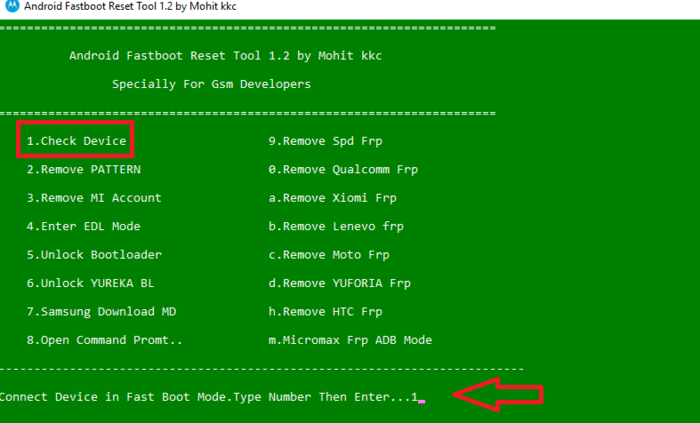
Step 3: Once extracted, run the “Android Fastboot Reset Tool V1.2.exe” as an administrator. You should see a command prompt window pop up, displaying a list of operations the tool can perform (similar to the image below).
Step 4: Next, you need to boot your Android device into Fastboot mode. To do this:
- Power off your Android device.
- Press and hold the Power + Volume Down buttons simultaneously (this may vary slightly depending on your device).
- Connect your device to your PC using a USB cable.
Step 5: To check if the device is properly connected, type 1 in the command prompt window and hit Enter. If the connection is successful, the tool will be ready to perform any operation listed in the prompt.
Step 6: You can now type the corresponding number or letter for the operation you want to execute and press Enter.
Step 7: Once the process is complete, disconnect your device from the PC and power it off. Some devices may reboot automatically after the operation. If not, simply press the Power button to manually restart it.
Common Issues Resolved by Android Fastboot Reset Tool v1.2
The Android Fastboot Reset Tool v1.2 isn’t just for one specific problem; it can solve a variety of issues. Here’s a look at some of the most common problems it can fix:
Boot Loops
A boot loop happens when your device is stuck in a continuous cycle of restarting, and it never gets to the home screen. This issue is often caused by corrupted system files, but the Android Fastboot Reset Tool v1.2 can help reset the bootloader and bring your phone back to normal.
Unresponsive Device
If your Android device is completely unresponsive and won’t turn on, the Android Fastboot Reset Tool can be your rescue. The tool allows you to access and reset the device at a deeper level, which isn’t possible through standard recovery methods.
Software Corruption
Sometimes, an app or system update can corrupt Android’s core files. A simple factory reset might not fix it, but using Fastboot Reset Tool v1.2 can completely resolve these types of problems by restoring the system to its original state.
Is It Safe to Use Android Fastboot Reset Tool v1.2?
Yes, using the Android Fastboot Reset Tool v1.2 is generally safe, as long as you follow the instructions correctly. It’s important to download the tool from a trusted source to avoid malware. Additionally, always ensure that your phone’s battery is sufficiently charged before starting the process.
Precautions to Take:
- Always back up your data if possible.
- Make sure your device’s bootloader is unlocked before using the tool.
- Use only the official versions of the tool.
Frequently Asked Questions
What is the Android Fastboot Reset Tool v1.2?
The Android Fastboot Reset Tool v1.2 is a software utility that allows users to perform a variety of operations on Android devices through Fastboot mode. These operations include resetting devices, unlocking bootloaders, fixing bootloops, and performing other advanced system tasks.
How do I install the Android Fastboot Reset Tool v1.2 on my PC?
To install the Android Fastboot Reset Tool v1.2, first, download the tool and extract it to your PC. After extraction, run the “Android Fastboot Reset Tool V1.2.exe” file as an administrator. Follow the on-screen instructions, and ensure you have the correct USB drivers installed for your Android device.
What do I need to use the Android Fastboot Reset Tool v1.2?
You will need a Windows PC, a compatible Android device, the USB drivers for your device, and a USB cable to connect your phone to the PC. The device also needs to be able to boot into Fastboot mode to interact with the tool.
Can I perform a factory reset using the Android Fastboot Reset Tool v1.2?
Yes, the Android Fastboot Reset Tool v1.2 can be used to perform a factory reset on your device. This will erase all data on your phone, so make sure to back up important files before proceeding with a reset.
What should I do if my device doesn’t reboot after using the tool?
If your device does not reboot automatically after completing an operation with the Android Fastboot Reset Tool, simply press the Power button to manually restart your device. Some devices may not reboot automatically depending on the operation performed.
Conclusion
In this guide, we’ve walked through the complete process of downloading, installing, and using the Android Fastboot Reset Tool v1.2. By following the steps outlined, you can easily perform essential operations on your Android device, including resetting or troubleshooting issues using the Fastboot mode.
Whether you are looking to fix software problems, unlock bootloaders, or perform other system-level tasks, the Android Fastboot Reset Tool v1.2 provides an efficient and straightforward solution. The tool’s user-friendly interface and powerful features ensure that even beginners can navigate and perform operations without hassle.
Remember to always double-check the connection between your device and PC, and ensure you’re using the correct USB drivers to avoid complications. As with any tool, take necessary precautions, especially when performing resets or other sensitive tasks on your device.
We hope this guide has helped you get started with the Android Fastboot Reset Tool v1.2. If you have any questions or run into issues, don’t hesitate to reach out in the comments. Happy troubleshooting, and good luck with your Android device!