

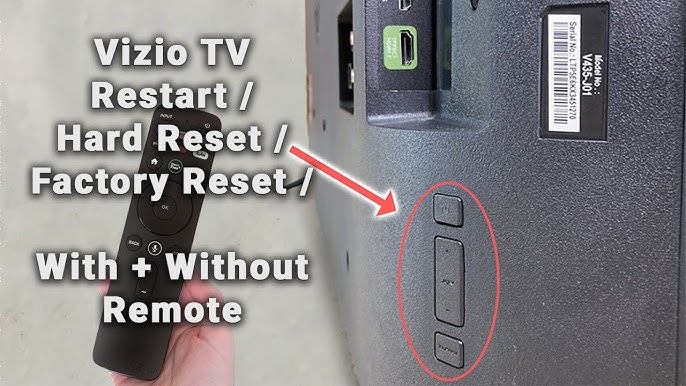
How to Restart Vizio TV with Remote: Much like with other devices, restarting a Vizio TV resolves around 80% of the issues users encounter, while also enhancing its performance. In this guide, we’ll show you how to restart your Vizio TV, whether you have a remote or not.
Vizio is a well-known brand that offers a wide range of smart TVs catering to various budgets. As with any electronic device, smart TVs can occasionally face issues, and Vizio TVs are no exception.
Many Vizio smart TV owners have reported experiencing minor, temporary glitches that disrupt their viewing experience. The simplest and often most effective solution for these issues is to restart the TV, which can resolve many common problems.
Why Should You Restart Your Vizio Smart TV?
Restarting any smart TV, including Vizio, can significantly improve its performance by clearing cached data and temporary files. This simple action helps your TV run more smoothly and can resolve various common issues.
If you encounter problems such as a frozen or glitchy screen, unresponsive apps, network connectivity issues, or even crashing apps, restarting your Vizio TV is often the first step in troubleshooting. Many of these problems can be fixed without further intervention by simply rebooting the TV.
How to Restart Vizio TV with Remote
Restarting your Vizio TV is quick and easy. A reboot helps resolve bugs and refreshes the system, clearing the RAM without deleting any data. You can choose from multiple methods to restart your TV.
Restart Vizio TV Using the Remote’s Power Button
If you have the remote control, this is the easiest way to restart your Vizio TV, especially if you’re facing issues with apps, audio, or video.
Steps to follow:
- Press and hold the Power button on the remote for a few seconds.
- Your TV will turn off after a few seconds.
- Wait about one minute, then press and hold the Power button again to turn the TV back on.
Restart Vizio TV via Settings Using the Remote
You can also restart your Vizio TV through the settings menu using your remote control. Here’s how:
Steps to follow:
- Press the Menu button on your remote.
- Navigate to Settings > System.
- Select Reset and Admin (or just Reset, depending on your model).
- Choose Soft Power Cycle, and your TV will restart immediately.
Restart Vizio TV Without a Remote
If you don’t have the remote or it’s not working, you can still restart your Vizio TV manually.
Steps to follow:
- Locate the Power button on your Vizio TV.
- Hold the button down for about 10 seconds until the TV turns off.
- Wait for one minute, then press and hold the Power button again until the Vizio logo appears.
Force Restart Vizio TV
If none of the above methods work, you can perform a force restart.
Steps to follow:
- Unplug the TV from the power outlet.
- Wait for about one minute before plugging it back in.
- Press and hold the Power button for a few seconds to turn the TV back on.
Common Issues After Restarting Vizio TV
Sometimes, after performing a restart, you may run into a few common Vizio TV issues. Here are some common problems you might encounter and how to address them.
TV Does Not Turn On After Restart:
If the TV remains unresponsive, it might not have been reset properly. Repeat the power cycle or check if the remote is working.
Picture or Audio Problems:
If you notice issues with the picture or sound after a restart, check the TV’s input settings and ensure all cables are securely connected. A quick restart could also help fix audio sync issues or poor picture quality.
Network Connectivity Issues:
If your Vizio TV won’t connect to the internet or apps after restarting, try reconnecting to your Wi-Fi network via the TV settings.
Frequently Asked Questions
How do I restart my Vizio TV using the remote?
To restart your Vizio TV using the remote, press and hold the Power button on the remote for about 5-10 seconds. The TV will turn off. Wait for about a minute, then press and hold the Power button again to turn the TV back on.
What if my Vizio TV doesn’t restart after holding the power button?
If your Vizio TV doesn’t restart after holding the power button, make sure you’re holding it long enough (at least 10 seconds). If the issue persists, try other methods, such as restarting through the TV settings or performing a force restart by unplugging the TV.
Will restarting my Vizio TV with the remote erase my data?
No, restarting your Vizio TV with the remote will not erase any data. This process only clears temporary files and resets the TV’s RAM, helping to improve performance without affecting your personal settings or apps.
Can I restart my Vizio TV if the remote is not working?
If your remote is not working, you can still restart your Vizio TV by using the physical Power button on the TV or performing a force restart by unplugging the TV and plugging it back in.
Why should I restart my Vizio TV with the remote?
Restarting your Vizio TV with the remote can help resolve common issues like freezing screens, unresponsive apps, or network connectivity problems. It refreshes the TV’s system and improves overall performance.
conclusion
Restarting your Vizio TV using the remote is a simple and effective way to troubleshoot common issues such as frozen screens, unresponsive apps, or video and audio glitches. Whether you’re pressing and holding the power button or using the settings menu, these methods help refresh the system, clear temporary data, and enhance the overall performance of your TV.
By following the steps outlined in this guide, you can easily reboot your Vizio TV without losing any data, ensuring that it continues to run smoothly. If the remote is unavailable or not working, there are alternative methods, such as using the physical power button or performing a force restart.