

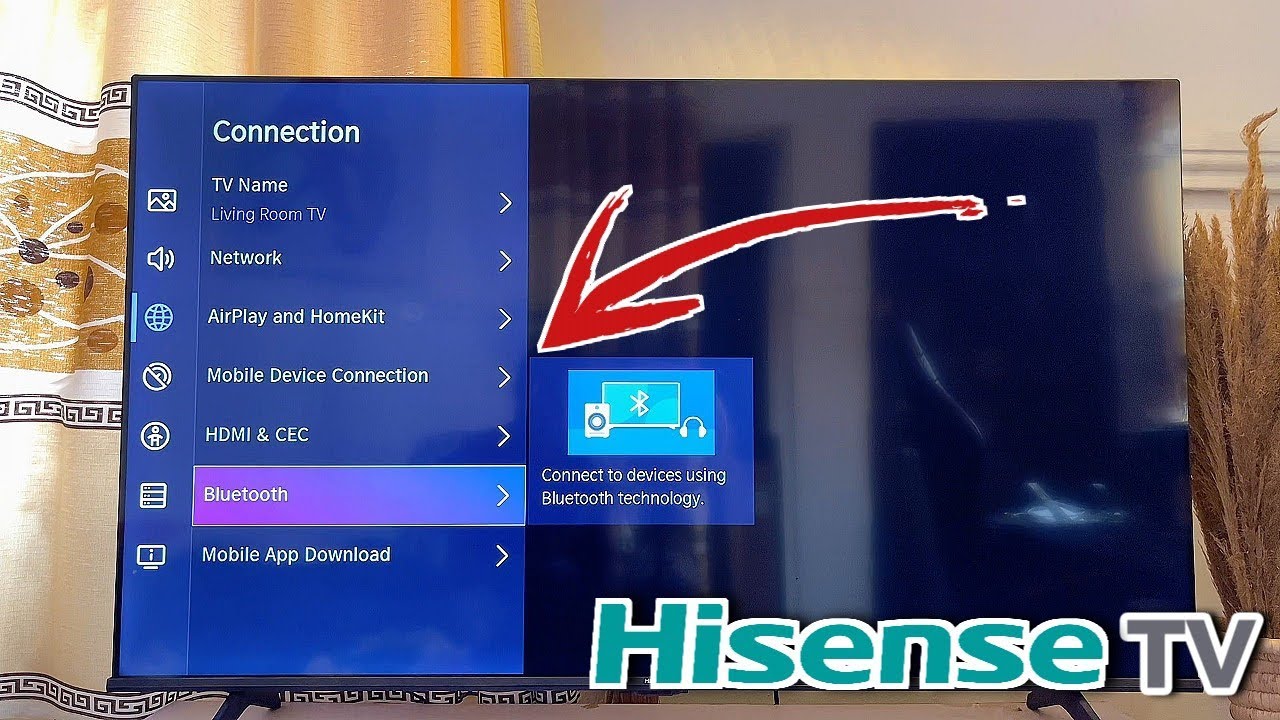
Are you looking to connect Bluetooth devices to your Hisense TV Bluetooth? Here are several methods to easily pair Bluetooth devices with your TV.
Smart TVs, including Hisense models, offer convenient wireless connectivity options like Bluetooth and Wi-Fi. These features are perfect for streaming content from your phone to the TV or for connecting external wireless speakers to enhance your audio experience.
How you connect Bluetooth devices to your Hisense Smart TV may vary depending on the operating system it uses—whether it’s VIDAA U OS, Android, Roku OS, or another. With these systems, you can effortlessly connect a variety of Bluetooth devices. Keep reading to discover how to pair Bluetooth devices with your Hisense Smart TV.
How to Connect Bluetooth Devices to Hisense TV Bluetooth
You can connect a variety of Bluetooth devices, such as keyboards, microphones, speakers, soundbars, and even game controllers, to your Hisense Smart TV. For an enhanced movie-watching experience, consider pairing a wireless speaker or Bluetooth headset, allowing you to enjoy your film without disturbing others.
In this guide, we will explore how to connect Bluetooth devices—like speakers, headphones, soundbars, and game controllers—to TVs running different operating systems.
Let’s begin with the simple steps to enable Bluetooth on your TV. While it’s a straightforward process, if you’re having trouble locating the Bluetooth option, don’t worry—this guide will help you out.
Enabling Bluetooth on Your Hisense Smart TV
To connect Bluetooth devices to your Hisense Smart TV, the first step is enabling Bluetooth. Since Hisense offers a range of TV models, the process for activating Bluetooth may vary. Here’s how to enable Bluetooth for each Hisense TV model:
Connecting Bluetooth Devices to Your Hisense Smart TV
For Android TV:
Go to Settings > Network & Accessories > Bluetooth Settings, and turn on Bluetooth.
For Google TV:
Select your profile and go to Settings. Then choose Remote & Accessories > Pair remote or accessory.
For Roku TV:
Navigate to Settings > Remotes & Devices > Wireless Headphones or Speakers, and select Add new wireless headphones or Add new speakers.
For Fire TV:
From the home screen, select the gear icon to open Settings. Then choose Remote & Bluetooth Devices > Other Bluetooth Devices > Add Bluetooth Devices.
For VIDAA TV:
Press the Menu button on your remote to go to Settings. Select Network or Remotes & Accessories > Bluetooth, and turn it on.
For XClass TV:
Go to Settings, select Bluetooth, and turn it on.
Essential Preparations to Connect Bluetooth Speaker to Hisense TV Using Bluetooth
When pairing your Bluetooth speaker with the Hisense TV, keep it close to the TV for a smooth connection. Ensure the Bluetooth speaker or audio device is sufficiently charged to avoid any interruptions during pairing or playback. Verify that the Bluetooth option is enabled on your Hisense TV. The following Hisense TV models support Bluetooth connectivity:
- A6, A60, A65, A7
- U6, U7, U8, U9
- H55, H65, H8, H8G1, H9
- A4G, A4H
- R6
- L5G Laser TVs
How to Turn OFF Bluetooth on Hisense TV
If you’ve previously enabled Bluetooth on your Hisense TV, turning it off after use is a simple task. Just navigate to the Settings and select the Bluetooth option for your specific Hisense TV model, as mentioned earlier.
For Hisense Android and Google TV models, simply toggle the Bluetooth option to OFF. The same process applies to Hisense VIDAA TVs.
However, for other models, you won’t need to turn Bluetooth on and off each time. Bluetooth will remain ready to pair with devices, such as speakers, whenever you access the Bluetooth settings.
How to Connect Hisense TV to a Bluetooth Speaker
- First, enable Bluetooth on your TV using the steps above. Then, power on your Bluetooth speaker and switch it to Bluetooth mode.
- On your Hisense TV screen, the name of your Bluetooth device will appear under “Available Devices.”
- Select the device to begin pairing. Once connected, you will hear the TV audio through the Bluetooth speaker.
How to Connect a Bluetooth Speaker to a Non-Smart Hisense TV
Older Hisense TV models do not support Bluetooth. However, you can still connect a Bluetooth speaker using a wired connection with an RCA, HDMI, Optical, or AUX cable (depending on available ports). After connecting, adjust the TV’s audio output to enjoy improved sound through your speaker.
If you wish to connect your non-smart Hisense TV wirelessly to a Bluetooth speaker, here’s a workaround:
- Purchase a high-quality Bluetooth transmitter for your older Hisense TV and unbox it.
While the Bluetooth speaker is in pairing mode, connect the Bluetooth transmitter to your Hisense TV. The transmitter will detect the Bluetooth speaker and establish a connection, allowing the audio from your Hisense TV to be played through the Bluetooth speaker until you choose to disconnect.
How to Connect a Hisense TV to a Bluetooth Speaker Without a Remote
The official Roku app for Hisense TVs with Roku OS offers a unique feature that allows you to connect Bluetooth speakers and other audio devices remotely using your smartphone, without needing the remote or accessing the on-screen settings.
- Install the Roku app on your mobile phone.
- Ensure your phone is connected to the same network as your Hisense TV.
- Sign in to your Roku account, select your Hisense Roku TV from the devices list to pair, and then connect the Bluetooth speaker to your mobile device.
- Open the app’s virtual remote by tapping the Remote tab. Select the headset icon next to the mic option. Now, you can enjoy audio from your Hisense TV through the Bluetooth speaker.
How to Unpair a Bluetooth Speaker from Your Hisense TV
If you want to disconnect your Bluetooth speaker from the Hisense TV, there are several methods to do so:
- Navigate to the Bluetooth settings, select your Bluetooth speaker from the connected devices list, and click Disconnect/Unpair.
- Alternatively, disable the Bluetooth option on your Hisense TV, which will automatically disconnect the speaker.
- Turning off the Bluetooth mode on the speaker itself will also disconnect it from the TV.
- If you’ve connected the Bluetooth speaker using a wired connection, simply unplug the cable after turning off the TV.
- For connections made via the Roku app with private listening, turning off the Wi-Fi on your phone will disconnect the Bluetooth speaker.
- If using a Bluetooth transmitter, turn off the transmitter’s power switch or unplug it to disconnect the speaker from the TV.
Frequently Asked Questions
How do I connect my Bluetooth speaker to my Hisense TV?
To connect a Bluetooth speaker to your Hisense TV, ensure that the speaker is in pairing mode and then navigate to the TV’s Bluetooth settings. Select your Bluetooth speaker from the list of available devices, and the audio will automatically stream to the speaker once connected.
Can I connect Bluetooth headphones to my Hisense TV?
Yes, you can connect Bluetooth headphones to your Hisense TV in a similar way to pairing a Bluetooth speaker. Simply put your headphones in pairing mode, access the Bluetooth settings on the TV, and select the headphones from the list of available devices to enjoy audio without disturbing others.
How can I use Bluetooth to connect my Hisense TV to other audio devices?
Besides speakers and headphones, you can connect other Bluetooth audio devices (like soundbars) to your Hisense TV by following the same pairing process. Just ensure your audio device is in pairing mode and select it from the list of available devices in the TV’s Bluetooth settings.
Can I connect my Hisense TV to Bluetooth without a remote?
Yes, you can connect your Hisense TV to a Bluetooth device without using the remote. One option is to use the official Roku app, which lets you control the TV and pair Bluetooth devices directly from your smartphone. You just need to ensure both the phone and TV are connected to the same network.
How do I disconnect or unpair my Bluetooth speaker from my Hisense TV?
To disconnect your Bluetooth speaker, go to the Bluetooth settings on your Hisense TV, find the connected device, and select “Disconnect” or “Unpair.” Alternatively, you can simply turn off the Bluetooth on your TV or the Bluetooth speaker to automatically break the connection.
conclusion
Hisense TV Bluetooth offer a seamless and versatile Bluetooth experience, allowing you to connect various audio devices like Bluetooth speakers, headphones, and soundbars for enhanced sound quality and convenience. Whether you prefer wireless audio for a more immersive viewing experience or need a solution to watch TV without disturbing others, Bluetooth connectivity offers a flexible solution.
By following the steps outlined in this guide, you can easily pair and manage Bluetooth devices with your Hisense TV, whether you have a remote control or not. With these simple tips, you can enjoy high-quality audio wirelessly and make the most of your Hisense TV’s Bluetooth capabilities.
Remember, troubleshooting connectivity issues is easy when you know the right steps to take, and knowing how to disconnect or unpair devices ensures you have control over your setup at all times. Embrace the power of Bluetooth and take your entertainment experience to the next level!