

Are you looking for 4 Digit Code for Vizio TV to set up or program your universal remote? In this guide, we’ll provide you with the universal remote codes for Vizio TVs.
Remotes can be fragile, and with the sleek, compact design of Smart TV remotes, they can easily slip out of your hands and get damaged. If your Vizio Smart TV remote goes missing or stops working, you can either replace it or temporarily use your phone as a remote. However, pairing your phone with the TV can sometimes be tricky, making a universal remote the best alternative.
A Universal Remote is a versatile device that works with most TV brands, including Vizio. While it may not offer every feature of the original remote, it will cover all the essential functions. These remotes are perfect when you can’t find a replacement for your original remote or if you want a single remote to control multiple TVs.
If you’ve recently bought a universal remote and need to program it with your Vizio Smart TV, you’ve come to the right place. We’ll walk you through the step-by-step process and provide you with the universal remote codes for Vizio TVs. Let’s get started!
Why You Need the 4 Digit Code for Vizio TV
Imagine this: You’re all set to unwind after a long day, grab the remote, and press play on your favorite movie. However, instead of pressing play, you end up fumbling through settings because the TV refuses to respond. It turns out, the issue is that your remote or smart device needs a special code to communicate with your Vizio TV.
For many of us, a universal remote can make our lives easier by controlling multiple devices with a single click. But here’s the catch — to ensure it works properly with your Vizio TV, you’ll need to input the correct 4-digit code. Without this, pairing won’t happen smoothly, and you’ll be left wondering what went wrong.
Where to Find the 4-Digit Code for Vizio TV?
Now that you understand the importance of the 4-digit code for Vizio TV, let’s get to the crucial part — how to find it. Luckily, there are a few straightforward ways to get your hands on the right code.
Check the Manual
First things first, always check your Vizio TV’s manual. If you bought your TV new, the manual typically includes a section with the codes for various remotes. You can find the 4-digit code right there, listed under the remote control instructions.
Visit the Vizio Website
In case you’ve lost the manual or simply don’t have it available, don’t worry! Vizio’s official website is a treasure trove for support, including a list of codes for all their models. Simply head over to the Vizio support page, search for the remote code section, and find the corresponding code for your TV model.
Use the Auto-Search Function
Not into digging through manuals or websites? No problem! Many universal remotes have an auto-search feature that allows you to scan through codes automatically. This is especially useful if you’re unsure about the exact code.
Universal Remote Codes for Vizio TV [Popular Remotes]
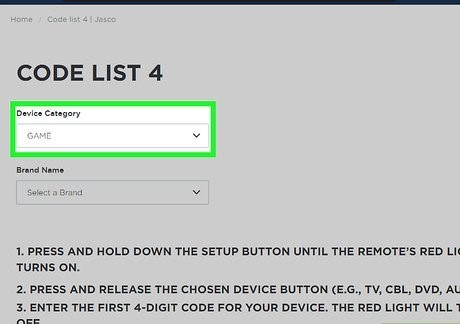
Codes are essential for programming devices like the Vizio TV, particularly when setting up your Universal Remote. It’s important to note that there are various remotes available in the market, so the button combinations required to input the code for your Vizio Smart TV may differ depending on the remote you have. Now, let’s explore the list.
Here is a table breaking down the Vizio TV pairing codes for popular universal remote brands:
| Remote Type | Codes |
|---|---|
| Vizio TV Codes for GE, Philips, and UltraPro Universal Remote | CL3: 5631, 5561, 5611, 1471, 1741, 2021, 2901, 3651, 3741, 3851, 4081, 5571, 5581, 5591, 5601, 5621, 5641, 5651, 5661, 5671, 5681, 5691, 5701, 5711 CL4: 5611, 5631, 5561, 6121, 6131, 6111, 5651, 5621, 5711 CL5: 5631, 5611, 5561, 6471, 6511, 6121, 6131, 6111, 5651, 5621, 5711 CL6: 5631, 5611, 5561, 6471, 6511, 6121, 6131, 6111, 5651, 5621, 5711 |
| Vizio TV Codes for RCA Universal Remote | 11758, 13758, 14905, 35011, 40412, 80016, 20111, 14723, 12707, 12757, 12512, 11756 |
| Vizio TV Codes for Magnavox Universal Remote | 0104, 0046 |
| Vizio TV Codes for Spectrum Universal Remote | Spectrum Remotes: 11758, 12707, 11756, 10864, 10885 Spectrum Charter Remote: 11758, 10864, 10885, 11756 Spectrum Philips Remote: 1230, 1081, 1092, 1187, 1228, 1293, 1299, 1306, 1333, 1380 |
| Vizio TV Codes for Xfinity Comcast Remote | 11758, 11756, 12707, 10864, 10885, 12512 |
| Vizio TV Codes for One for All Remote | 23161, 31544 |
| Vizio TV Codes for Inteset Remote | INT422-4 Model: 13758, 11758, 14905, 14723, 12707, 12757, 12512 INT422-3 Model: 11758, 13758, 12757, 13415 |
| Vizio TV Codes for Sky Remote | Remote Version 4 and 6: 0683, 0615, 0547, 0540, 0527, 0065 Remote Version 8, 9, and 10: 1206, 0206, 1784, 1165, 1065, 0683, 0661, 0615, 0559, 0547 |
| Vizio TV Codes for Blackweb Remote | 3533, 2472, 2045, 2501, 2473, 0143, 2476, 2474, 0081, 1168, 1169, 0033, 2475 |
| Vizio TV Codes for Brightstar Remote | 927, 011, 013, 014 |
| Common Vizio TV Universal Remote Codes | Use any of the above codes for other remotes not listed |
Universal Remote Codes for Vizio TV [Common Codes]
Note: Some universal remotes may require a four-digit, three-digit, or even a two-digit code. To determine which type of code your remote uses, check the remote model on the back or inside the battery cover. Once you’ve identified the code format, refer to the list below to find the pairing code needed to program your remote to your Vizio TV.
| 2-Digit Codes | 3-Digit Codes | 4-Digit Codes | 5-Digit Codes |
|---|---|---|---|
| 19 | 004 | 0030 | 01377 |
| 01 | 011 | 0050 | 10117 |
| 02 | 113 | 0081 | 10120 |
| 10 | 284 | 0112 | 10178 |
| 12 | 502 | 0117 | 10864 |
| 17 | 505 | 0128 | 10885 |
| 627 | 0143 | 11756 | |
| 0178 | 11758 | ||
| 0205 | |||
| 0218 | |||
| 0219 | |||
| 0220 | |||
| 0222 | |||
| 0891 | |||
| 0912 | |||
| 1000 | |||
| 1004 | |||
| 1011 | |||
| 1078 | |||
| 1168 | |||
| 1169 | |||
| 1189 | |||
| 1222 | |||
| 1292 | |||
| 1322 | |||
| 1429 | |||
| 1433 | |||
| 1439 | |||
| 1756 | |||
| 1758 | |||
| 1783 | |||
| 3145 |
Steps to Program a Universal Remote to Your Vizio TV Using Codes
Before starting, make sure you have your Vizio TV’s model number ready. You can find this on the user manual or on a label located on the back of the TV. The model number will help you identify the correct code for pairing your remote. If you’re unable to find the code, you can manually test each one from the list provided. Once you have the code, follow these steps to program your universal remote:
Step 1: Turn on your Vizio TV.
Step 2: Press and hold the Setup button on your remote until the red power light turns on.
Step 3: Press the TV button once to indicate you’re programming a TV.
Step 4: Enter the programming code from the list for your Vizio TV.
Step 5: Start by trying code 10178. If that doesn’t work, try 11178. If neither code works, continue testing the other codes in the list.
Step 6: Once you enter the correct code, the red light will turn off.
Troubleshooting Common Issues
Sometimes, things don’t go as planned, and the 4-digit code for Vizio TV just doesn’t seem to work. Here are a few quick troubleshooting tips:
Double-Check the Code
One common issue is inputting the wrong code. Recheck the code, especially if you have multiple remotes or models involved. Always verify that the code matches the TV’s make and model.
Try the Auto-Search Method
If the manual method doesn’t work, go ahead and try the auto-search feature of your remote. This will scan through available codes automatically until the correct one is found.
Reset the Remote
If you’ve gone through the above steps and still haven’t found success, try resetting your remote. Remove the batteries for a few minutes, and then reinsert them. This can sometimes clear out any memory glitches.
Why Does My Vizio TV Need a 4-Digit Code?
You may be wondering, “Why does my Vizio TV need a 4-digit code?” Great question! The 4-digit code acts as a communication bridge between your Vizio TV and the external device (like a universal remote or smart home system). It ensures that commands are sent correctly and that both devices sync up.
The Role of the Remote
Think of your remote as a translator. It speaks a different language than your TV, but the 4-digit code helps it interpret and send the correct signals.
What to Do If You Lose the Code?
Losing the 4-digit code for Vizio TV is a common occurrence, but all is not lost! As mentioned earlier, the Vizio website and customer support are great resources for finding your code. Alternatively, you can use the universal remote’s auto-search function or look for a code lookup tool.
Frequently Asked Questions
What is the 4-digit code for Vizio TV?
The 4-digit code for Vizio TVs varies depending on the brand of universal remote you are using. Some of the most common codes include 11758, 11756, and 12707, but it’s important to check the specific list for your remote brand. You can find these codes in the user manual or online guides.
How do I find the 4-digit code for my Vizio TV?
To find the 4-digit code for your Vizio TV, refer to the user manual of your universal remote. The code list for Vizio TVs is often included in the manual. If it’s not listed, you can search online for the specific brand of remote you’re using, or try inputting each code from the available list until you find one that works.
What should I do if the 4-digit code doesn’t work for my Vizio TV?
If the 4-digit code doesn’t work, double-check that you’re using the correct code for your remote model. You can also try alternative codes from the same brand’s code list or use the auto-search feature on your remote to find the correct code.
Can I use any 4-digit code for my Vizio TV?
No, not all 4-digit codes will work for your Vizio TV. The code needs to be specific to the brand of universal remote you are using. Make sure to use the correct code list for your remote brand, such as GE, RCA, Philips, or Xfinity.
How can I program my Vizio TV with the 4-digit code?
To program your Vizio TV using the 4-digit code, first turn on the TV and press the setup button on your universal remote. Then, enter the 4-digit code specific to your remote brand. Once the code is entered, the red indicator light will turn off, signaling successful programming. If it doesn’t work, repeat the process with a different code.
Conclusion
Getting the 4 digit code for Vizio TV doesn’t have to be a headache. With the right steps, it’s an easy process that will help you pair your TV with universal remotes and smart home devices in no time. Remember, whether you’re using the manual method, visiting the Vizio website, or going for the auto-search, the key is to remain patient and persistent.
So, next time you’re faced with setting up your TV or remote, don’t let the 4-digit code stand in your way. With this guide, you’ll have everything you need to get your Vizio TV up and running in no time.