

When purchasing a new TV, connectivity options are often a top priority for many users. Among these, Bluetooth and Wi-Fi connectivity are especially valued for features like screen mirroring, pairing devices, and wireless streaming. While Bluetooth is widely supported by modern devices, not all Roku TVs include Bluetooth functionality.
If you’re considering an Onn Roku TV, you may wonder: Does Onn Roku TV have Bluetooth? Let’s dive into the details to answer this question and explore alternative connection options.
Does Onn Roku TV have Bluetooth?
No, Onn Roku TVs do not have built-in Bluetooth connectivity. However, you can still connect Bluetooth headphones or soundbars to your TV using Roku’s private listening feature. In a world dominated by smart devices, the absence of Bluetooth on some large-screen TVs may seem surprising, but Roku offers alternative ways to achieve wireless audio connections.
In this guide, we’ll explore two easy methods for connecting Bluetooth devices to your Onn Roku TV.

How to Connect Bluetooth Devices to Onn Roku TV
1. Using the Roku App (Recommended)
The most reliable method to connect Bluetooth devices to your Onn Roku TV is by using the Roku app on your smartphone. With this feature, called private listening, you can stream TV audio directly to your Bluetooth device.
Here’s how to set it up:
- Download the Roku App:
Open the Roku app on your smartphone (available for both Android and iOS) and ensure it’s linked to your Onn Roku TV. - Pair Your Bluetooth Device:
Pair your Bluetooth headphones or soundbar with your smartphone as you normally would. - Access the Devices Tab:
In the Roku app, navigate to the Devices tab and select your Roku TV. - Activate Private Listening:
Tap on the Remote option, then click the headphones icon in the virtual remote.A headphone icon will appear in the top-right corner of your TV screen, confirming that audio is now routed through your Bluetooth device.
This method is compatible with all Roku TVs and provides seamless audio streaming to Bluetooth devices.
2. Using Wireless Connections (Limited to Select Devices)
For users with Roku-enabled soundbars or other compatible devices, a wireless connection can also be used to pair Bluetooth accessories.
Follow these steps to connect:
- Enable Pairing Mode:
Put your Bluetooth headphones or soundbar in pairing mode. - Access TV Settings:
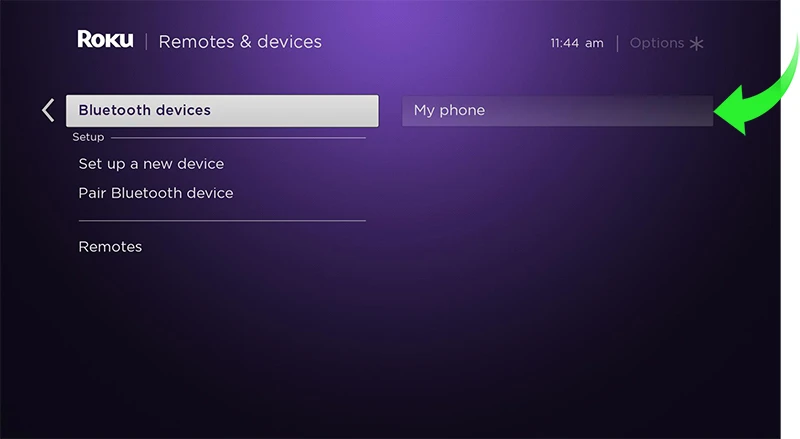
Press the Home button on your Roku remote, then go to Settings > Remote & Devices. - Add New Device:
Select Add new device or look for options like Wireless headphones or Speakers. - Pair Your Device:
Once your TV detects the Bluetooth device, select it to complete the pairing process.Note: This method works only with certain Roku-enabled devices and may not be compatible with all models.
Key Takeaways
While Onn Roku TVs lack native Bluetooth support, you can still enjoy wireless audio through:
- The Roku app’s private listening feature (works with all Roku TVs).
- A wireless connection with select Roku-enabled soundbars or headphones (limited compatibility).
Frequently Asked Questions
Does the Onn Roku TV have built-in Bluetooth?
No, Onn Roku TVs do not have built-in Bluetooth connectivity. However, you can still connect Bluetooth devices using the Roku app’s private listening feature or other alternative methods.
How can I connect Bluetooth headphones to my Onn Roku TV?
You can connect Bluetooth headphones using the Roku mobile app. Pair your headphones with your smartphone, open the Roku app, and enable private listening to stream audio wirelessly.
Can I use a Bluetooth soundbar with my Onn Roku TV?
Yes, you can connect a Bluetooth soundbar to your Onn Roku TV by using a Roku-enabled soundbar or the private listening feature through the Roku app.
Are there any Bluetooth alternatives for Onn Roku TVs?
If Bluetooth is not available, you can use a wired connection (such as HDMI ARC or optical cables) or Roku-enabled wireless devices like soundbars and speakers for enhanced audio functionality.
Why doesn’t Onn Roku TV have Bluetooth?
The lack of Bluetooth in Onn Roku TVs is likely a cost-saving measure to make the TVs more affordable. Instead, Roku provides alternative wireless audio options like private listening to cater to user needs.
Conclusion
While Onn Roku TVs do not come with built-in Bluetooth connectivity, you can still connect Bluetooth devices like headphones and soundbars using alternative methods. The Roku app’s private listening feature is the most reliable option for wireless audio streaming, offering a seamless experience through your smartphone. Additionally, Roku-enabled devices like soundbars can provide limited Bluetooth functionality for certain setups.