


Google Password Manager is an integrated feature in the Chrome browser that helps users save and manage passwords across devices. It simplifies the login process by automatically filling in your saved passwords. However, there are times when you may want to disable it. Whether you prefer using another password manager or prefer not to store passwords in your browser, disabling Chrome’s built-in password manager is a useful option.
Disable Google Password Manager in Chrome
If you want to enter passwords manually or switch to a different password manager, it’s important to first export your saved passwords. Chrome allows you to do so by navigating to Google Password Manager under the Autofill and Password section in settings.
Here’s how you can disable it across devices:
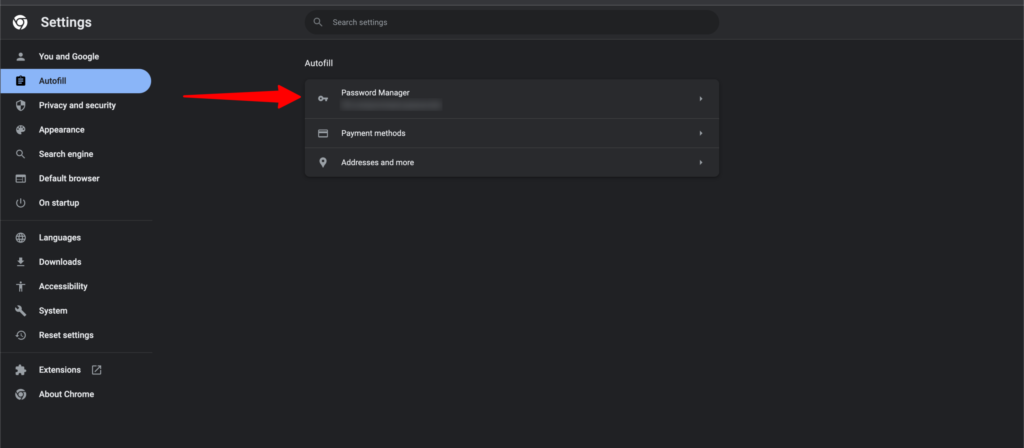
Steps for PC
For Windows or Mac users, follow these steps to disable Google Password Manager:
- Open the Google Chrome browser on your PC.
- Click on the three-dot icon at the top-right corner and select Settings.
- From the left sidebar, select Autofill and then click on Passwords.
- On the right panel, tap on Google Password Manager.
- In the new window, click Settings in the sidebar.
- Toggle off Offer to save passwords and Sign in automatically.

Steps for Chrome Mobile App
Disabling Google Password Manager on the Chrome app for mobile is slightly different:
- Open the Chrome app on your Android or iPhone.
- Tap the three-dot icon (Android) or three-line icon (iPhone) and go to Settings.
- Select Google Password Manager.
- For Android, tap the Settings tab at the bottom, and for iPhone, navigate directly to the Password Manager.
- Turn off the toggles for Offer to save passwords and Auto sign-in.

Why Disable Google Password Manager in Chrome?
There are several reasons why you might want to disable Google Password Manager in Chrome:
Privacy Concerns:
For users who are wary of Google storing their passwords, disabling the password manager may help ensure that sensitive information is not stored in Google’s ecosystem. This can provide additional peace of mind for privacy-conscious individuals.
Security Issues:
If your Google Account is compromised, all the passwords stored in Google Password Manager could be exposed. Disabling this feature reduces the risk of all your saved passwords being accessed in the event of a breach.
Preference for Third-Party Password Managers:
Many users prefer to use specialized password management software, such as LastPass, 1Password, or Bitwarden, which often offer additional features like password generation, encryption, and secure sharing. Disabling Google Password Manager ensures that your passwords are handled by the tool of your choice.
Avoiding Autofill Errors:
Sometimes, Google Chrome’s autofill feature can cause issues by incorrectly filling in login credentials or not recognizing the right account. If you encounter these problems, turning off Google Password Manager can eliminate such frustrations.
How to Manage Your Passwords Safely Without Google’s Password Manager
Now that you’ve disabled Google Password Manager, it’s important to manage your passwords securely. Here are some tips for effective password management:
Use a Third-Party Password Manager
Third-party password managers offer enhanced security features and are a great way to store and manage your passwords safely. These tools often provide strong encryption, two-factor authentication (2FA), and other security measures to keep your passwords safe. Some popular options include:
- LastPass: Offers both free and premium versions with features like password generation and secure sharing.
- 1Password: Known for its user-friendly interface and advanced security features, including a password vault and support for multiple devices.
- Bitwarden: An open-source password manager that offers both free and paid versions with excellent encryption.
Enable Two-Factor Authentication (2FA)
For an added layer of security, enable 2FA on your accounts. 2FA requires you to provide a second form of verification, such as a text message or an authentication app, when logging in. This significantly reduces the chances of unauthorized access.
Use Strong and Unique Passwords
Always create strong, unique passwords for each account. Avoid using easily guessable information such as your name or birthdate. A good password should include a mix of upper and lowercase letters, numbers, and special characters.
Regularly Update Your Passwords
Change your passwords periodically to minimize the risk of breaches. Set a reminder to update your passwords every few months.
Frequently Asked Questions
Why should I disable Google Password Manager in Chrome?
Disabling Google Password Manager can be beneficial if you prefer not to store passwords in your browser, want to use a third-party password manager, or simply wish to manage your passwords manually for enhanced privacy and security.
Can I still use Chrome without disabling the password manager?
Yes, you can continue using Chrome with the built-in password manager. It will automatically save and autofill passwords for websites. Disabling it is optional and only necessary if you prefer to manage passwords differently.
How do I export my passwords before disabling Google Password Manager?
Before turning off the password manager, you can export your saved passwords by going to Chrome settings, selecting Autofill and Passwords, then clicking on Google Password Manager and choosing Export Passwords.
Does disabling Google Password Manager affect my Google Account?
No, disabling the password manager in Chrome will not affect your Google Account. It simply prevents Chrome from saving and autofilling passwords on websites, but your Google Account credentials will remain intact and accessible through other Google services.
Will disabling Google Password Manager improve my security?
Disabling the password manager can improve your security if you choose to use a more secure, third-party password manager. These often offer features like stronger encryption, password auditing, and multi-device sync that Chrome’s built-in manager may not provide.
conclusion
Disabling Google Password Manager in Chrome is a simple process that gives you more control over how your passwords are managed. Whether you prefer to use a different password manager or choose not to store passwords in your browser, turning off this feature can enhance your privacy and security. By following the steps outlined for PC and mobile devices, you can easily disable the password manager and switch to an alternative password management solution. Make sure to export your saved passwords before disabling the feature, ensuring a smooth transition.