

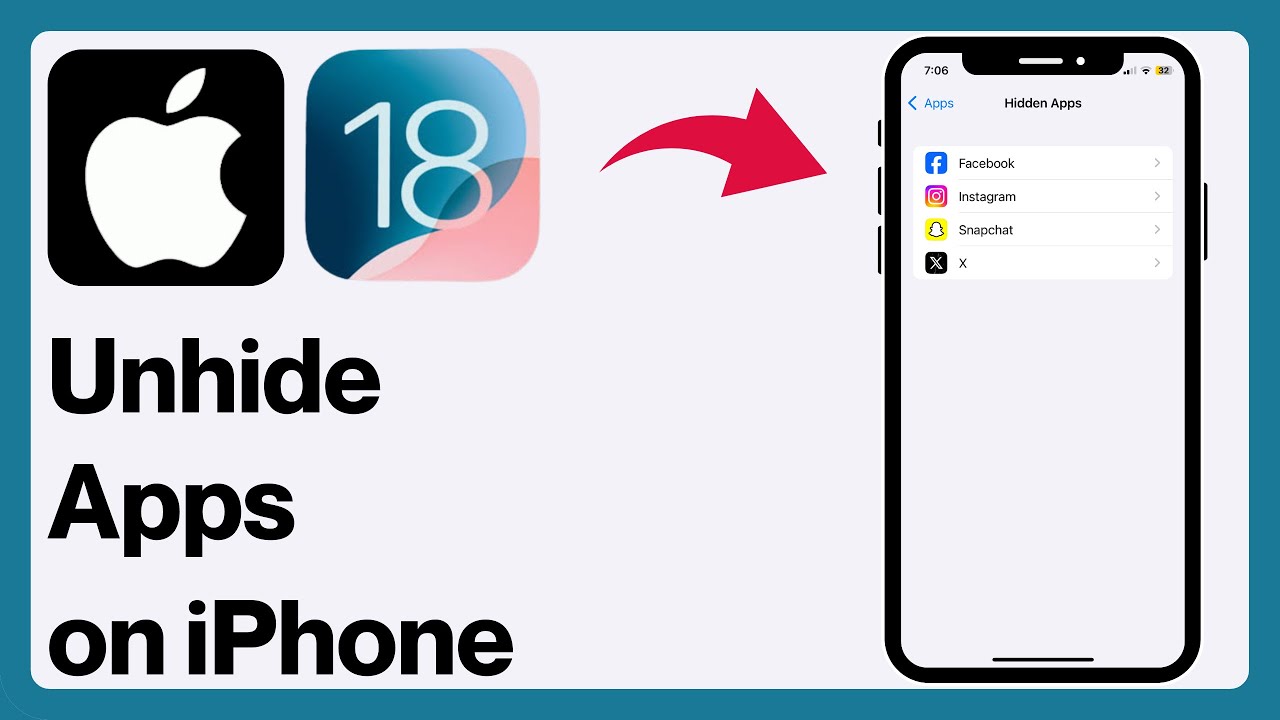
How to Unhide Apps on iPhone iOS 18: Are you struggling to find your hidden apps on iPhone with iOS 18? You’re not alone. Many users, while trying to tidy up their screens, end up hiding apps inadvertently, or perhaps even intentionally to declutter their home screen. Whatever the reason, knowing how to unhide apps is crucial when you’re looking to access them again.
In this detailed guide, we will walk you through the step-by-step process of un-hiding apps on your iPhone running iOS 18. We will cover everything from finding the apps to un-hiding them and even some handy tips along the way. Trust me—by the end of this guide, you’ll feel like a pro.
Why Do Apps Get Hidden in the First Place?
Before jumping into the steps, let’s quickly understand why apps get hidden. There are a few reasons why apps might end up hidden on your iPhone running iOS 18. Sometimes, it’s a simple case of accident—swiping or dragging the app into a folder or onto another screen. In other instances, apps may be hidden deliberately to reduce clutter or free up space on the home screen.
Additionally, iOS 18 introduced a handy feature known as App Library, which allows you to hide apps from the main screen but keep them accessible in the library. This feature is especially useful for people who want to keep their screens neat without deleting their apps.
How to Unhide Apps on iPhone iOS 18
Step 1: Check the App Library
The first place to look when you’re missing an app on iOS 18 is the App Library. It’s easy to forget that your apps are hidden there, but they’re just a swipe away.
- Swipe left past all of your home screen pages.
- This will take you to the App Library—a neat and organized list of all your apps.
- Use the search bar at the top of the App Library to search for the hidden app by name.
If you find the app here, you’re one step closer to un-hiding it.
Step 2: Move the App Back to the Home Screen
Once you’ve found the hidden app in the App Library, it’s time to move it back to the home screen for easy access. Follow these steps:
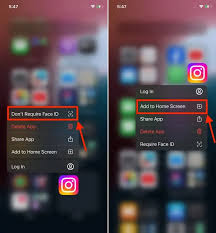
- Press and hold the app’s icon in the App Library.
- From the options that appear, choose Add to Home Screen.
Now, the app will be visible on your home screen again, just like it was before. This step is particularly useful if you’ve accidentally hidden the app or forgot where it went.
Step 3: Check for Hidden Apps in Folders
Sometimes, apps can be hidden in folders on your iPhone’s home screen. If you’ve organized your apps into folders, it’s worth checking them to see if your hidden apps are tucked away.
- Browse through your folders to see if the app is inside one.
- If you find it, you can drag it out to the home screen by pressing and holding the app, then dragging it to a desired location.
Folders can sometimes be tricky, especially if you have multiple pages of apps grouped together.
Step 4: Use the Search Feature
If you’re still unable to find the hidden app on your home screen or App Library, don’t panic. iOS 18 has a powerful search function that can help you locate it.
- Swipe down on the home screen to bring up the Spotlight search.
- Type the name of the hidden app into the search bar.
- The app should appear in the search results, even if it’s hidden on another screen or in a folder.
You can then open it directly from the search results.
Step 5: Check App Settings (If You’ve Used Restrictions)
If you’ve used Screen Time restrictions to hide certain apps, you’ll need to disable these restrictions before you can unhide the app.
- Go to Settings > Screen Time.
- Tap on Content & Privacy Restrictions.
- If the restrictions are enabled, you’ll need to enter your passcode to make changes.
- Select Allowed Apps and make sure the app you want to unhide is enabled.
Additional Tips for Managing Apps on iOS 18
While you’re at it, here are some additional tips for managing apps on iPhone iOS 18:
- Organize Apps into Folders: If you want to keep your apps organized but still visible, group them into folders. You can drag and drop apps into folders to make your home screen look neat.
- Use the App Library Effectively: The App Library is an excellent way to store apps that you don’t need on your main screen. You can keep apps here and access them when needed without cluttering your main screen.
- Enable App Suggestions: iOS 18 offers App Suggestions, which can recommend apps based on your usage patterns. This is useful if you often forget about apps that are hidden away.
- Check for Software Updates: If you’re experiencing problems with apps not showing up, make sure your iPhone is running the latest version of iOS 18. Sometimes, glitches can be resolved by updating to the latest software.
What to Do If an App is Missing After Unhiding It
Sometimes, you may follow the steps above and still find that an app is missing after un-hiding it. Here are a few steps you can try:
- Restart your iPhone: A simple restart can help clear out any software glitches and might solve the problem.
- Reinstall the App: If all else fails, try reinstalling the app from the App Store. You won’t lose any data, and the app will be fresh and ready to go.
Conclusion
Unhiding apps on your iPhone with iOS 18 is a straightforward process once you know where to look. Whether you’re retrieving apps from the App Library, moving them out of folders, or using the search feature, iOS 18 offers several ways to find your apps and get them back on your home screen. By following the step-by-step guide provided here, you’ll be able to easily unhide any apps you’ve accidentally hidden.
Remember, iOS 18 is designed to make your experience smoother, and mastering the art of managing your apps will help you navigate your device with ease. Whether you’re organizing your apps for a cleaner look or recovering a hidden app, these tips are sure to make your iPhone experience better.