


How to Open EXE Files on Chromebook are designed to run Android apps, but they don’t natively support Windows applications, meaning they can’t execute .exe files. This limitation often leaves users wondering how to open or run .exe files on a Chromebook. If you’re in the same boat, keep reading to discover how you can manage .exe files on your Chromebook.
ChromeOS is Google’s operating system designed for PCs and laptops. Chromebooks, which run on this OS, are available from a variety of manufacturers and have become increasingly popular.
ChromeOS primarily supports Android apps, allowing users to install and run them through the Google Play Store using APK files. However, things are different when it comes to Windows-based .exe files. These files are specific to the Windows operating system, and running them on a Chromebook requires a bit more effort. If you’re looking to run an .exe program on your Chromebook, this guide will walk you through the necessary steps.
How to Open EXE Files on Chromebook?
By default, ChromeOS does not support running Windows EXE files, as it is a different operating system. However, there are multiple methods you can use to run or install EXE files on a Google Chromebook. Below are the methods explained in a simplified and structured way:
Run EXE Files on Chromebook Using Wine
To run EXE files, you can use Wine, a compatibility layer that allows Linux systems to run Windows programs. Wine translates Windows system calls into Linux-friendly calls, making it different from an emulator. Here’s how you can install and use Wine on your Chromebook:
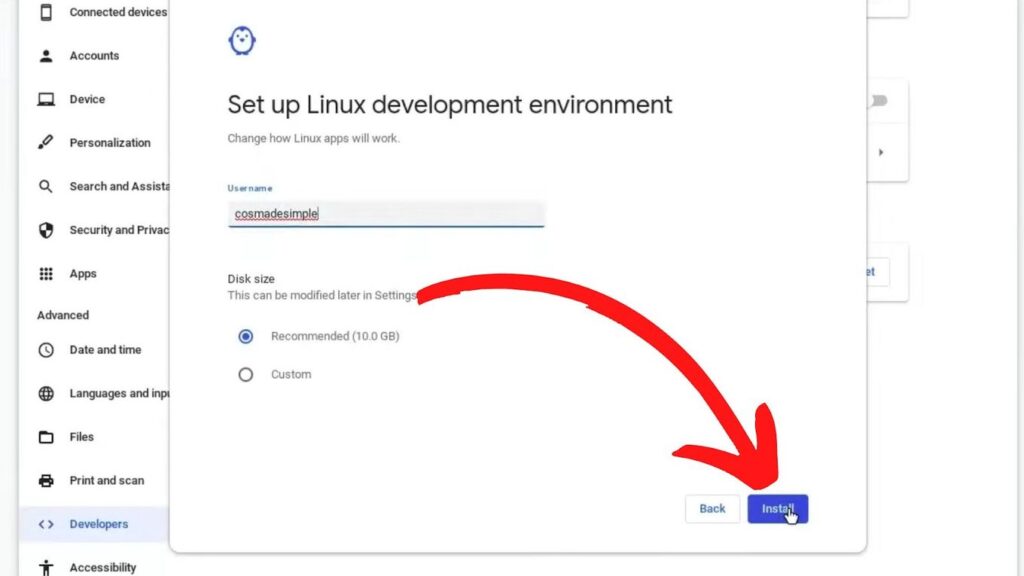
Step 1: Set up Linux on Chromebook
Since Wine is a Linux application, you’ll need to enable Linux on your Chromebook first. Follow these steps:
- Power on your Chromebook and click on the clock in the bottom right corner.
- Select Settings and go to Advanced.
- Under Advanced, click on Developers.
- Locate the Linux Development Environment option and enable it.
- Follow the on-screen instructions, which should take less than 10 minutes.
- This will set up a Debian 10 Linux environment on your Chromebook.
Step 2: Install Wine
Once Linux is enabled, follow these steps to install Wine:
- Open the Terminal app.
- Enter this command to add 32-bit architecture support:
sudo dpkg --add-architecture i386
Press Enter. - Download the WineHQ key with:
$ sudo wget -nc -O /usr/share/keyrings/winehq-archive.key https://dl.winehq.org/wine-builds/winehq.key
Press Enter. - Wine will begin installing on your Chromebook.
- Run this command to update Wine:
sudo apt update
Press Enter.
Now Wine is installed. To run your EXE files:
- Copy the EXE file to your Chromebook.
- Ensure the EXE file name is a single word without spaces (e.g., example.exe).
- Double-click the EXE file to install or run it on your Chromebook.
Run EXE Files on Chromebook Using Remote Access
If you have a Windows PC, you can remotely access it to run EXE files on your Chromebook:
- Set up Remote Desktop on your Windows PC by generating a code via Remote Support.
- On your Chromebook, open the Chrome browser and go to:
remotedesktop.google.com/access - Enter the code generated on your Windows PC and click Access.
Now your Chromebook is connected to your Windows PC, and you can use any Windows program remotely, including EXE files.
Run EXE Files on Chromebook Using CrossOver
CrossOver is a paid application that allows you to run Windows apps on Chromebooks without using complicated Linux commands. Here’s how you can install it:
- Enable Linux on your Chromebook (as shown above).
- Visit the official CrossOver website and purchase the application for your Chromebook (price: $14.99).
- After downloading, go to the Files app on your Chromebook, right-click the downloaded file, and select Install with Linux.
- Once installed, CrossOver will appear in your app launcher.
- Open the EXE file you want to run directly with CrossOver.
Install Parallel Desktop for ChromeOS
Parallel Desktop lets you run a full Windows OS on your Chromebook. This method is ideal for those who want a complete Windows experience. Here’s how to set it up:
- Download and install Parallel Desktop on your Chromebook.
- Download the Windows ISO file.
- Open the Crosh Terminal by pressing Ctrl + Alt + T and enter:
vmc create -p PvmDefault <filename.iso>
Replace<filename.iso>with the name of your Windows ISO file. - Start Parallel Desktop and install Windows using the ISO.
- Once Windows is installed, you can easily run EXE files directly from your Chromebook.
Frequently Asked Questions
Can I run EXE files directly on a Chromebook?
No, Chromebooks run Chrome OS, which does not natively support EXE files. However, you can use alternative methods such as installing Linux (Crostini), using a virtual machine, or using cloud-based solutions to run EXE files.
What is the easiest way to run EXE files on a Chromebook?
The easiest way is to use CrossOver for Chrome OS, which allows you to run some Windows applications directly on your Chromebook without needing a full Windows installation. It’s a user-friendly solution, especially for light to moderate Windows software.
Do I need to install Linux to run EXE files on my Chromebook?
No, installing Linux (Crostini) is one of the methods, but not the only option. Linux can run some Windows programs using Wine, but you might prefer alternatives like CrossOver or a virtual machine for easier access and better compatibility.
Can I run any EXE file on a Chromebook?
Not all EXE files will run smoothly on a Chromebook. The performance and compatibility depend on the method you use and the complexity of the EXE file. Simple programs might work well with CrossOver, but more complex applications may require a virtual machine or full Windows installation.
Is using a virtual machine the best way to run EXE files on a Chromebook?
Using a virtual machine (such as Parallels Desktop) can run full versions of Windows, making it a powerful solution for running EXE files. However, it requires more resources and may not be ideal for all Chromebook models. It’s best for users who need a full Windows environment.
Conclusion
In summary, while Chromebooks are primarily designed to run Chrome OS and do not natively support EXE files (Windows executables), there are several effective methods to run or access EXE files on your Chromebook. These methods include using Linux (Crostini), installing Windows in a virtual machine, or leveraging cloud-based services like Parallels Desktop or CrossOver for Chrome OS.
Each method comes with its own set of steps and considerations, but by following the guide, you can choose the one that best suits your needs. Whether you want to run specific Windows software or simply access the files, these options open up new possibilities for Chromebook users. Just remember that performance may vary depending on the complexity of the EXE file and the method you choose to run it.