

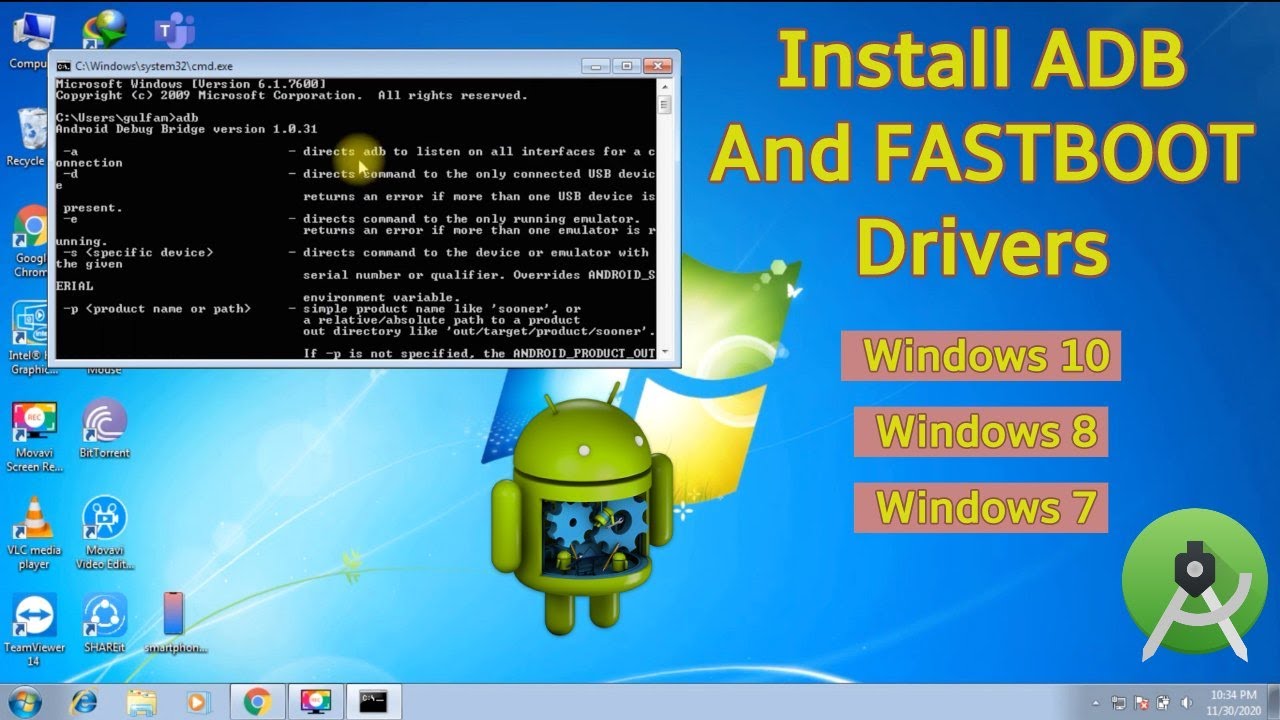
ADB Fastboot Drivers drivers serve distinct purposes, yet they are often needed together during most modification processes. Fortunately, you can install both drivers simultaneously to save time and effort. In this guide, you’ll find a simple way to download ADB & Fastboot drivers, as well as the USB driver for your phone.
If you’re looking to flash or install files on an Android phone using a PC, you’ll need both ADB and Fastboot drivers. These drivers facilitate the execution of ADB and Fastboot commands directly from your PC. ADB & Fastboot drivers are essential for the following tasks:
- Unlocking the Bootloader
- Installing TWRP Recovery
- Rooting an Android phone
- Flashing ZIP files
- Installing custom ROMs
- Fixing Bootloop issues
- Flashing Fastboot ROMs
- Running ADB & Fastboot commands
If you’re planning to modify your Android phone, the first step is to install the ADB & Fastboot drivers. These drivers are compatible with Windows 7, 8, 10, and 11. Simply follow the guide below, and you’ll have both drivers set up on your PC in no time. But before you begin, let’s take a look at the download links.
- Note: This guide is focused on installing a system-wide ADB Fastboot driver. However, if you’re only looking for driver access to a single folder or prefer a more direct approach, you can opt for the official Google platform driver, which also works on Mac and Linux.
Download ADB and Fastboot Driver
Both ADB and Fastboot drivers are crucial for Android development tasks such as testing ROMs, apps, and rooting Android phones. If you’re involved in Android development, you’ll often find yourself needing these drivers. While the 15-second ADB installer is now outdated, we’ve found an updated solution from Fawaz Ahmed. His latest tool requires just a 1KB .bat file for a system-wide ADB Fastboot driver installation. Simply click the download button to get the tool on your PC.
Download and Install ADB and Fastboot Drivers on Windows PC
Installing the system-wide ADB Fastboot driver is straightforward. This tool can also be used to install the correct USB driver for your phone. Below are the steps for both ADB driver installation and USB driver installation. If you don’t need the USB driver, you can skip steps 1, 2, and 4.
- Enable Developer Options and USB Debugging on Your Android Phone
Before installing the USB driver, make sure to enable Developer Options and USB Debugging on your phone. Additionally, select the MTP (Media Transfer Protocol) or File Transfer option. - Connect Your Phone to the PC
Connect your phone to your PC and allow USB debugging. - Launch the ADB Installer .bat File on Your PC
Run the ADB installer .bat file on your PC. The installation will begin automatically. If your phone is connected, you will be asked for confirmation on your phone. Tap “OK” to proceed. - Complete the Installation
Once the installation is complete, press any key to exit the installer. You can now use ADB and Fastboot commands from any file or directory on your PC.
Installing 15-Second ADB Installer (Outdated but Still Functional)
If you’re using the old 15-second ADB installer from snoop05 (which is no longer being updated), follow these steps:
- Run ADB & Fastboot Setup as Administrator
Right-click the ADB & Fastboot setup file and select “Run as administrator.” - Follow the Setup Instructions
A command prompt window will open with pre-written tasks. Follow the prompts: - To install ADB and Fastboot, press Y and hit Enter.
- To install ADB system-wide, press Y and hit Enter.
- To install device drivers, press Y and hit Enter.
- Complete the Installation
A pop-up will appear once you press Y on the device driver installation. Click “Next” and, once the installation finishes, click “Finish.
Fix ADB & Fastboot Drivers not installed properly
If you’ve successfully installed the driver on your Windows PC but your device is still not appearing in the connected list, you can resolve this issue by updating the driver.
- Open Device Manager. If you see a yellow icon next to your device (as shown in the image), right-click on it and select Update Driver.
- Next, click on Browse my computer for driver software, then select Let me pick from a list of available drivers.
- Choose the Android option.
- If you’re using Fastboot mode, select the Bootloader option and click Install. If you’re using ADB connectivity, select the ADB Interface option and install it.

What is the ADB Driver?
ADB (Android Debug Bridge) is a versatile tool that enables communication between your computer and Android devices. The “bridge” in ADB refers to its role in connecting your PC to Android devices. Once installed, the ADB driver works with multiple devices, so you don’t need separate drivers for each one.
With ADB, you can perform tasks like transferring files between your PC and phone, installing and uninstalling apps, and controlling your phone using shell commands. These basic functions make the ADB driver essential for managing your Android device.
What is the Fastboot Driver?
The Fastboot driver works similarly to ADB, but it specifically handles connections when the phone is in Fastboot mode. Fastboot allows you to flash system files such as recovery images, bootloaders, and kernels directly to your device.
Frequently Asked Questions
What is the difference between ADB and Fastboot drivers?
ADB (Android Debug Bridge) is used for tasks such as transferring files, installing apps, and executing shell commands while the device is running. Fastboot is used for flashing system images, such as recovery, bootloaders, and kernels, when the device is in Fastboot mode (a special boot mode for advanced system modifications).
How do I install ADB and Fastboot drivers on Windows?
To install ADB and Fastboot drivers on Windows, first download the Android SDK or platform tools, then open Device Manager. Right-click your device, select Update Driver, and choose Let me pick from a list of available drivers. Then select Android ADB Interface for ADB or Bootloader for Fastboot, and click Install.
Why is my Android device not showing up despite installing ADB and Fastboot drivers?
If your device isn’t showing up, ensure the correct driver is installed. If a yellow warning icon appears in Device Manager, try updating or reinstalling the driver. Also, make sure USB debugging is enabled on your device and that the cable and port are functioning correctly.
Can ADB and Fastboot drivers work with any Android device?
Yes, ADB and Fastboot drivers are compatible with most Android devices. Once installed, the ADB driver works with multiple devices, eliminating the need for separate drivers. However, certain manufacturers may require specific drivers, so always check the device’s support page if issues arise.
How do I troubleshoot ADB and Fastboot connection problems?
To troubleshoot connection issues, ensure that USB debugging is enabled on your Android device and that the device is connected via a reliable USB cable. Try using a different USB port or cable, and update the drivers through Device Manager. Restarting both the device and the computer can sometimes help resolve connectivity issues.
Conclusion
ADB and Fastboot drivers are essential tools for managing Android devices from your PC. The ADB driver allows you to perform tasks like file transfers, app installations, and executing commands from your computer to control your Android device. It’s a one-time installation that works with multiple devices, making it convenient for users.
On the other hand, the Fastboot driver is specifically used when the device is in Fastboot mode, helping you flash system files such as recovery images, bootloaders, and kernels directly to the phone.
Whether you’re troubleshooting connection issues or performing advanced tasks like flashing system files, having the correct ADB and Fastboot drivers installed ensures a smooth and efficient Android experience. If you encounter any issues, updating the drivers via Device Manager can resolve common connectivity problems.